Content
Enabling Mote’s Google Forms Auto Read Aloud tool could not be easier! This impactful integration requires a few clicks and grants survey respondents access to more dynamic, engaging, and accessible Google Forms. Check out the simple steps here:
Step 1️⃣: Activate Auto Read Aloud after clicking the Mote button at the top of a Google Form.
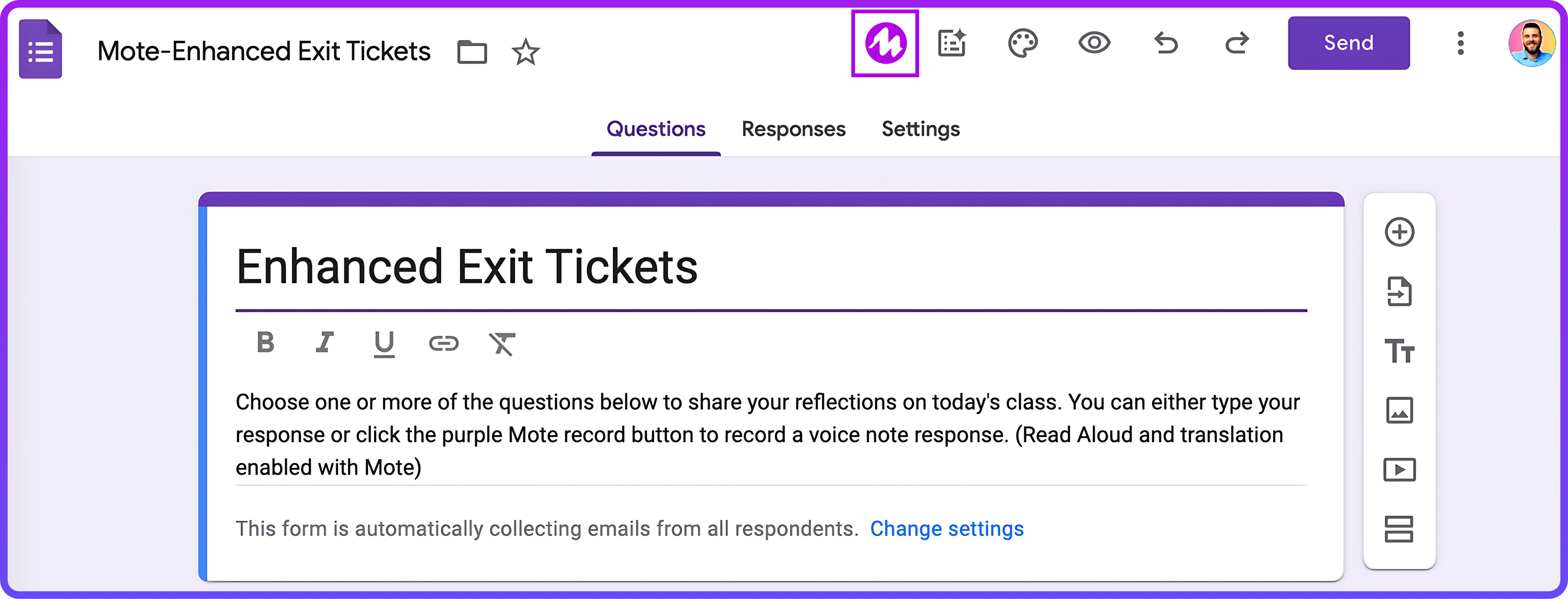
Step 2️⃣: Toggle ‘Translation’ on to allow students to translate the text and audio of any question into Mote’s over 50 supported languages. Mote will automatically identify and list the language within your Google Form. This listing is the TTS ‘Form language,’ defining the default voice for the Read Aloud.

Step 3️⃣: Click 'Save changes' and select the 'Preview' button to review your Mote-enhanced Google Form! Mote automatically discloses that this feature is enabled for respondents in the Form's description.
Note 🔒: Mote allows respondents to listen to audio message embeds within Google Forms even with Locked Mode enabled. This integration is a great way to ensure students are in a secure, distraction-free assessment space with access to the scaffolds Mote provides. Check out the Assessment with Mote course to learn more about the extension’s functionality in Locked Mode and additional Mote features to level up your Google Forms!