

Mote PDF lets you access, edit and save any PDF, and use all of Mote's reading and writing tools.
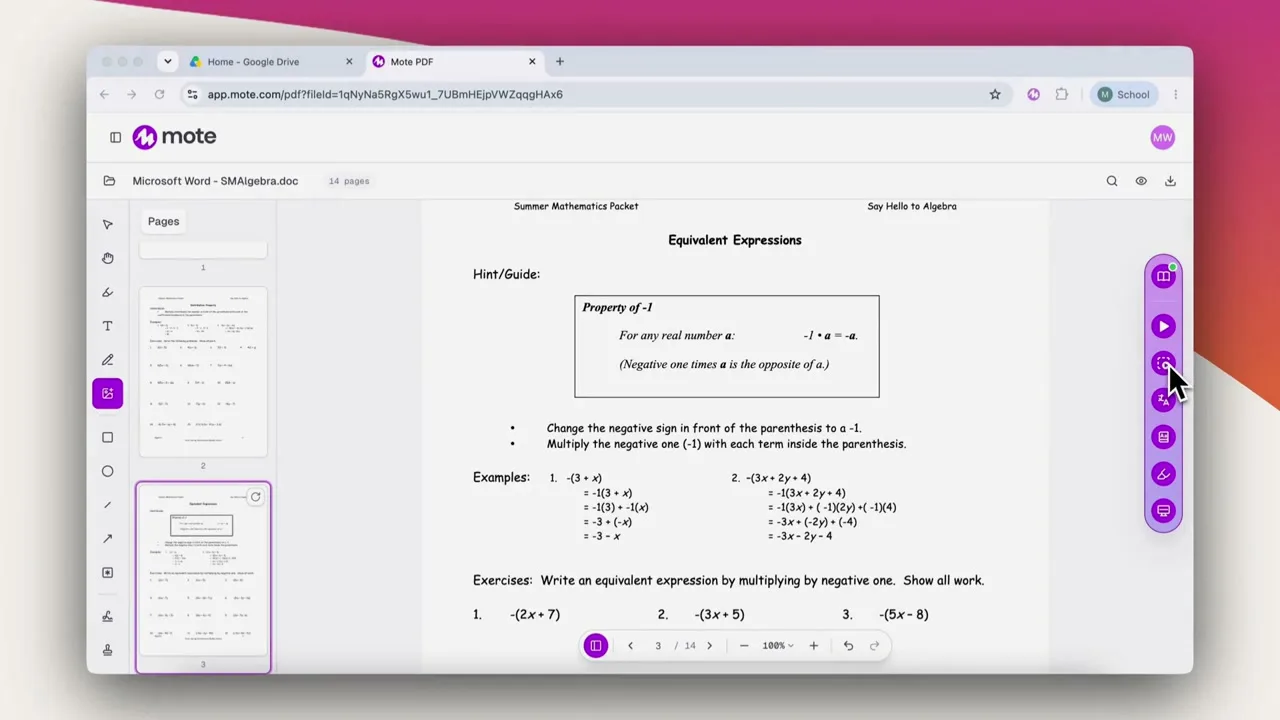




















Hear any PDF read aloud, including scanned documents.
Translate a passage, or look up a word they do not know.
Highlight, annotate, or type on the page, and save the file with the changes.
Share a scanned worksheet with your class and get completed work back.
Use the materials you already have, and know every student can read them.
Have students read, answer and mark up their own copy and hand it back.
Mote PDF is a web app to access, edit and save any PDF. Open a document and Mote checks it first, telling you whether it is accessible, inaccessible, or a scan. If it is only a picture of a page, Mote uses OCR to read the words and turn them into real text. Students can then use all of Mote's reading and writing tools to read aloud, translate a passage, look a word up, or reduce distractions with the Screen Mask. They can work on it too: highlight, annotate, drop in text boxes, and sign and date it, all saved as proper PDF annotations that travel with the file.
Already tagged and readable, so the whole toolkit works from the moment it opens.
Mote flags it, then OCR rebuilds the text so the document becomes accessible and the whole toolkit works on it.
Detected as soon as it opens. OCR reads the words off the picture and turns them into real text.
Same treatment as a scan. The words come off the image and behave like any other text.
Open a PDF, and the whole Mote toolkit comes with it.
01
Sign up to Mote
02
Go to Mote PDF
03
Upload a PDF
04
Scan it
05
Start annotating and reading
Create a Mote account. You can sign in with Google or ClassLink, so there is no separate password to remember.
Mote PDF lives on the Mote app. Nothing to install before you open a document.
Drop in a worksheet, an article or a page from a textbook, or open one straight from Google Drive.
If the document is only a picture of a page, Mote offers to run OCR on it. The words come off the image and become real text, so Read Aloud, Translation, the Dictionary and the Screen Mask all work on a document that gave a student nothing before.
Hear it read aloud, translate a passage, then highlight, annotate, add text boxes, and sign and date it. Click save to Google Drive when you're finished, and everything saves as proper PDF annotations that travel with the file.











Yes. Mote checks every PDF you open and tells you whether it is accessible, inaccessible, or a scan. If it is a scan, it offers to run OCR, so the words become real text that can be heard, translated and selected.
Yes. Mote rebuilds it as a properly structured document, with real headings, lists, tables and language information, tagged to the PDF/UA accessibility standard. It is not a picture with text hidden behind it.
No. Upload it straight to Mote PDF, or open it from Google Drive: right-click the file, choose Open with, and select Mote. Nothing to download or convert first.
Yes. They are saved as proper PDF annotations rather than a picture layer on top, so they persist and travel with the file.
Yes. They can type onto the page, add text boxes, and add a signature and date, then save the result.

.png)